> For the complete documentation index, see [llms.txt](https://tech.x2bee.com/llms.txt). Markdown versions of documentation pages are available by appending `.md` to page URLs; this page is available as [Markdown](https://tech.x2bee.com/dev-guide/pjt-prepare/publish-your-docs/store-front-framewok-next.js/03./2.-checkbox.md).
# 2. Checkbox
이 문서는 로컬 아이콘을 사용하여 체크박스에 아이콘을 적용하는 방법에 대한 가이드입니다.
{% stepper %}
{% step %}
### 1) 로컬 아이콘 준비
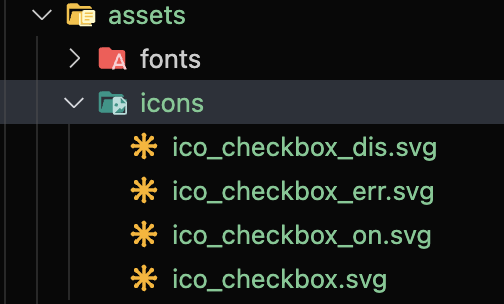
checkbox에 사용할 아이콘을 `src/assets/icons/` 폴더에 저장합니다. (폴더 이름은 자유)
{% endstep %}
{% step %}
### 2) tailwind.config.js 설정
`tailwind.config.js`에 다음과 같이 backgroundImage를 추가합니다. (경로와 파일명은 프로젝트에 맞게 수정)
{% code title="tailwind.config.js" %}
```
```
{% endcode %}
```js
theme: {
extend: {
backgroundImage: {
'icon-checkbox': "url('~/src/assets/icons/ico_checkbox.svg')",
'icon-checkbox-on': "url('~/src/assets/icons/ico_checkbox_on.svg')",
'icon-checkbox-dis': "url('~/src/assets/icons/ico_checkbox_dis.svg')",
},
}
}
```
이제 아이콘 이미지를 커스텀 유틸리티 클래스(background-image)로 사용할 수 있습니다.
{% endstep %}
{% step %}
### 3) CSS 파일 분리 및 import
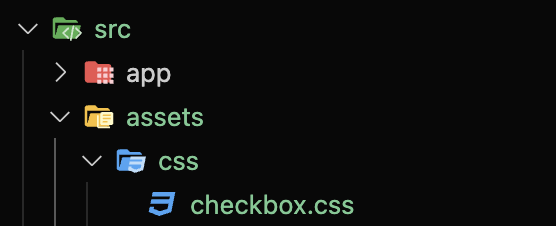
`src/app/globals.css`에 직접 추가해도 되지만 리팩토링을 위해 `src/assets/css/checkbox.css` 파일을 생성하고, `globals.css`에서 import 합니다:
```
@import url('../assets/css/checkbox.css');
```
```
@tailwind base;
@tailwind components;
@tailwind utilities;
@layer base {
input {
@apply appearance-none;
}
}
@layer components {
.checkbox {
@apply mx-2 inline-block h-6 w-6 shrink-0 cursor-pointer bg-icon-checkbox bg-contain bg-center bg-no-repeat align-middle checked:bg-icon-checkbox-on disabled:bg-icon-checkbox-dis;
}
}
```
설명:
* 기본 Tailwind reset에서 input 태그를 완전히 초기화하지 않으므로 `@apply appearance-none;`로 다시 리셋합니다.
* `.checkbox` 클래스에 앞서 설정한 background-image 유틸리티를 사용합니다.
### 5) 컴포넌트 내 사용 예시
React(또는 Next.js) 컴포넌트 예시:
```jsx
const CheckBox = () => {
return (
);
};
export default CheckBox;
```
{% endstep %}
{% step %}
### 6) 결과
#### local icons
checkbox에 사용할 icon을 src/assets/icons/ 폴더에 저장합니다. (폴더 이름은 자유)
 #### config
tailwind.config.js에 다음 코드를 추가합니다.
```
theme: {
extend: {
backgroundImage: {
'icon-checkbox': "url('~/src/assets/icons/ico_checkbox.svg')",
'icon-checkbox-on': "url('~/src/assets/icons/ico_checkbox_on.svg')",
'icon-checkbox-dis': "url('~/src/assets/icons/ico_checkbox_dis.svg')",
},
```
이제 아이콘 이미지를 custom utility class로 사용할 수 있습니다.
#### css
src/app/globals.css 에 코드를 추가해도 되지만,
refactoring을 위해 src/assets/css/checkbox.css 파일 생성하고,
src/app/globals.css에서 import 합니다.
`@import url('../assets/css/checkbox.css');`
다시 checkbox.css로 돌아와 위에서 정의한 utility class를 다음과 같이 작성합니다.
그리고 tailwind css 기본 reset css에서 input tag를 완전히 reset 시켜주지 않으므로 여기서 다시 reset 합니다.
```
@tailwind base;
@tailwind components;
@tailwind utilities;
@layer base {
input {
@apply appearance-none;
}
}
@layer components {
.checkbox {
@apply mx-2 inline-block h-6 w-6 shrink-0 cursor-pointer bg-icon-checkbox bg-contain bg-center bg-no-repeat align-middle checked:bg-icon-checkbox-on disabled:bg-icon-checkbox-dis;
}
}
```
#### component내에서 사용 예시
```
const CheckBox = () => {
return (
);
};
export default CheckBox;
```
#### 결과
#### config
tailwind.config.js에 다음 코드를 추가합니다.
```
theme: {
extend: {
backgroundImage: {
'icon-checkbox': "url('~/src/assets/icons/ico_checkbox.svg')",
'icon-checkbox-on': "url('~/src/assets/icons/ico_checkbox_on.svg')",
'icon-checkbox-dis': "url('~/src/assets/icons/ico_checkbox_dis.svg')",
},
```
이제 아이콘 이미지를 custom utility class로 사용할 수 있습니다.
#### css
src/app/globals.css 에 코드를 추가해도 되지만,
refactoring을 위해 src/assets/css/checkbox.css 파일 생성하고,
src/app/globals.css에서 import 합니다.
`@import url('../assets/css/checkbox.css');`
다시 checkbox.css로 돌아와 위에서 정의한 utility class를 다음과 같이 작성합니다.
그리고 tailwind css 기본 reset css에서 input tag를 완전히 reset 시켜주지 않으므로 여기서 다시 reset 합니다.
```
@tailwind base;
@tailwind components;
@tailwind utilities;
@layer base {
input {
@apply appearance-none;
}
}
@layer components {
.checkbox {
@apply mx-2 inline-block h-6 w-6 shrink-0 cursor-pointer bg-icon-checkbox bg-contain bg-center bg-no-repeat align-middle checked:bg-icon-checkbox-on disabled:bg-icon-checkbox-dis;
}
}
```
#### component내에서 사용 예시
```
const CheckBox = () => {
return (
);
};
export default CheckBox;
```
#### 결과
 {% endstep %}
{% endstepper %}
{% endstep %}
{% endstepper %}

.png?alt=media&token=50ad9109-2a19-4004-8bc7-372355fffe8a)