> For the complete documentation index, see [llms.txt](https://tech.x2bee.com/llms.txt). Markdown versions of documentation pages are available by appending `.md` to page URLs; this page is available as [Markdown](https://tech.x2bee.com/api-guide/api-guides-en/using-store-front-api/product-and-search-pages/product-detail-page.md).
# Product Detail Page
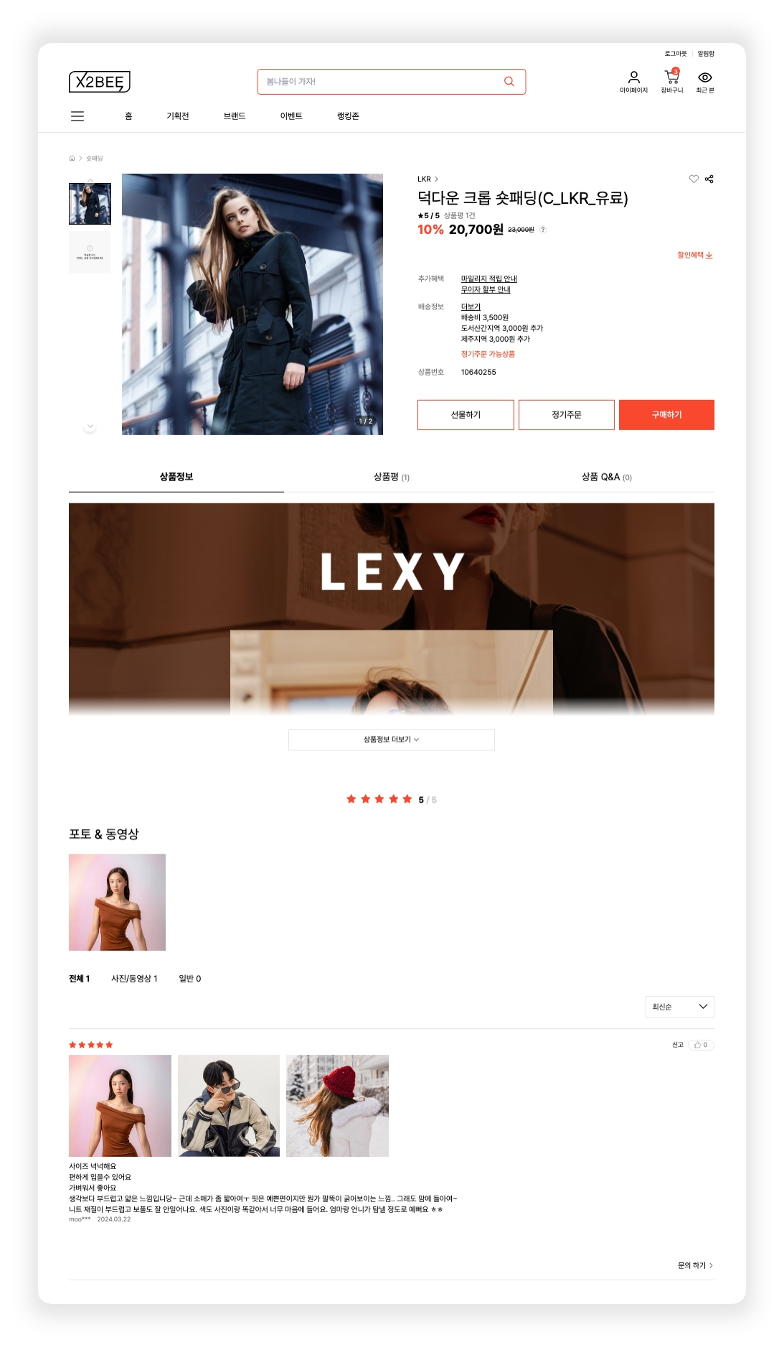
An interface used on an e-commerce website or application to provide and manage detailed information for an individual product. It effectively conveys various information about a specific product to users and enables a smooth purchase process.
***
{% columns %}
{% column %}
### 1. Look Up Product Information
You can look up the basic and detailed information for that product.
* **Look up product detail information (**[🔗View API >](https://api.x2bee.com/content?msa=goods\&depth=%EC%83%81%ED%92%88%EC%83%81%EC%84%B8/seltProductDetailInfo))\
An API for looking up detailed product information on the product detail page.
* Looks up products where display status is Y, sales status is on sale/sold out, and the current date falls within the sales period
* Looks up the product's basic/item/brand/image/price/payment method/related products/bundle products/delivery fee policy/promotion/gift/review rating statistics information
```
GET /v1/detail/goodsDetail
```
**1.1 Brand**
Clicking **\[Brand]** navigates to that brand's main page.
### 2. Product Image Details
Clicking **\[Product Image]** shows a popup where you can view all the images for that product together.
**2.1 Product Image Detail Popup**
Shows the images registered for that product. Click a thumbnail at the bottom to view it larger at the top of the popup.
For the product image API, please refer to **1. Look Up Product Information** in the Product Detail document.
### 3. Discount History
Clicking the **\[?]** icon to the right of the price information shows the discount history popup for that product.
**3.1 Discount History Popup**
Provides information on the regular price, selling price, and the maximum applied discount price.
For the product image API, please refer to **1. Look Up Product Information** in the Product Detail document.
### 4. Size Guide
Clicking **\[Size Guide]** shows the size guide popup for that product.
The **\[Size Guide]** button only appears for products included in the clothing category.
**4.1 Size Guide Popup**
Provides size information by country for products in the women's/men's/children's/infant categories.
For the product image API, please refer to **1. Look Up Product Information** in the Product Detail document.
### 5. Discount Benefits & Get Coupon
Clicking **\[Discount Benefits]** as a logged-in user shows the discount benefits & get coupon popup.
You can look up available coupons to issue and coupons you already hold and can use, and download issuable coupons.
**5.1 Look Up Coupon List**
* **Look up downloadable coupons on product detail (**[🔗 View API >](https://api.x2bee.com/content?msa=order\&depth=%EC%BF%A0%ED%8F%B0%20%EB%B0%9C%EA%B8%89/getCpnListForGoodsDetail))
* Issuable coupons: looks up the list of coupons the logged-in user can issue
* Held coupons: looks up the list of coupons the logged-in user already holds
```
POST /v1/marketing/goodsDetailCpnList
```
**5.2 Download Coupon**
* **Download coupon (FO) (**[🔗 View API >](https://api.x2bee.com/content?msa=order\&depth=%EC%BF%A0%ED%8F%B0%20%EB%B0%9C%EA%B8%89/cpnDownFo))
* Get all coupons: downloads all issuable coupons
* Download: downloads the clicked coupon
```
POST /v1/marketing/cpnDown
```
### 6. Gift Information
Gifts provided with a product purchase are only shown to logged-in customers.
Clicking a gift promotion product shows the gift information popup.
**6.1 Gift Information Popup**
Provides information about ongoing gift promotions.
* **Look up gift promotions on product detail (**[🔗 View API >](https://api.x2bee.com/content?msa=order\&depth=%ED%94%84%EB%A1%9C%EB%AA%A8%EC%85%98%20%EC%82%AC%EC%9D%80%ED%96%89%EC%82%AC/getAeEvtList_2))\
An API for looking up the gift promotion list on the product detail page.\
Returns only the single gift with the highest benefit order number per gift promotion number.
```
POST /v1/marketing/aeEvtList
```
### 7. Mileage Accrual Information
In Additional Benefits, clicking **\[Mileage Accrual Information]** shows the mileage accrual popup.
**7.1 Mileage Accrual Popup**
Provides information on the maximum mileage you can earn.
### 8. Interest-Free Installment Information
In Additional Benefits, clicking **\[Interest-Free Installment Information]** shows the card promotion benefit information popup.
**8.1 Interest-Free Installment Popup**
* **Look up interest-free installment information list (**[🔗View API >](https://api.x2bee.com/content?msa=order\&depth=%EA%B2%B0%EC%A0%9C%EC%A0%95%EB%B3%B4/getInterestFreeList))\
Looks up the interest-free installment information list registered in the BO's Interest-Free Installment Information management.
```
GET /v1/payment/getInterestFreeList
```
### 9. Delivery Detail Information
Clicking \[More] in the delivery information shows the delivery detail information popup.
**9.1 Delivery Detail Information Popup**
Provides more detailed reservation and delivery information.
For the delivery information API, please refer to **1. Look Up Product Information** in the Product Detail document.
Can provide product notice information and delivery/exchange/return information within the product detail page.
### 10. Product Notice Information
Clicking **\[Product Notice Information]** shows the product notice information popup for that product.
**10.1 Product Notice Information Popup**
Provides the product's information disclosure notice, quality assurance standards, and after-sales service contact / phone number.
For the product notice information API, please refer to 1. Look Up Product Information in the Product Detail document.
### 11. Exchange/Return/Refund Information
Clicking \[Exchange/Return Information] shows the exchange/return/refund information popup for that product.
**11.1 Exchange/Return/Refund Information Popup**
Provides information on the exchange/return/refund procedure, delivery fee, and reasons a request may not be accepted for the product.
* **Look up delivery/exchange/return information by product (**[🔗View API >](https://api.x2bee.com/content?msa=goods\&depth=%EC%83%81%ED%92%88%EC%83%81%EC%84%B8%20%EB%B0%B0%EC%86%A1%EC%A0%95%EB%B3%B4/getPdReturnOrChangeInfo))\
Looks up the list of delivery policies and partner delivery location information matched by product number.
```
GET /v1/delivery/pd/{goodsNo}
```
***
## Bottom Navigation Button Bar
### 1. Bottom Navigation Button Bar
After scrolling down through the basic product information, buttons for purchasing the product appear.
**1.1 When Sales Status Is On Sale**
A Buy button appears. Depending on the product's basic information, Gift and Regular Order buttons may also appear.
The **\[Gift], \[Regular Order], \[Buy]** buttons appear; clicking one displays the product option selection layer.
**1.2 When Sales Status Is Sold Out**
The **\[Apply for Restock Notification]** button appears; clicking it shows the restock notification application popup.
### 2. Product Option Selection Layer
Looks up the item option information for the product configured at registration.
* **Look up option information (**[🔗View API >](https://api.x2bee.com/content?msa=goods\&depth=%EC%83%81%ED%92%88%EC%83%81%EC%84%B8/seltProductOptionInfo))\
Looks up the product's option information and the price and stock information for each item.
* When looking up a bundle product, the option list of the bundle's representative product is returned.
```
GET /v1/detail/goodsOptionInfo
```
**2.1 Cart**
After selecting the product's options and clicking the **\[Cart]** button, the product is added to the cart and a popup guiding you to the cart appears.
* **Add to cart (**[🔗 View API >](https://api.x2bee.com/content?msa=order\&depth=%EC%9E%A5%EB%B0%94%EA%B5%AC%EB%8B%88/registerBasket))\
Adds the product to the cart. If the user is a non-member registering for the first time, a session number is generated and stored in a cookie.
```
POST /v1/basket/registerBasket
```
**2.2 Gift**
After selecting the product's options and clicking the **\[Gift]** button, you are moved to the gifting screen.
**2.3 Apply for Regular Order**
After selecting the product's options and clicking the **\[Apply for Regular Order]** button, you are moved to the regular order application screen.
**2.4 Buy Now**
After selecting the product's options and clicking the **\[Buy Now]** button, you are moved to the order/payment screen.
### 3. Apply for Restock Notification
When a logged-in user clicks the **\[Apply for Restock Notification]** button, the restock notification application popup appears.
**3.1 Apply for Notification**
Enters the notification type and the information to receive the notification at, applying to be notified when the selected item is restocked.
* **Apply for restock notification (** [🔗 View API >](https://api.x2bee.com/content?msa=goods\&depth=%EC%83%81%ED%92%88%20%EC%9E%AC%EC%9E%85%EA%B3%A0/replenishApply))\
Applies for a restock notification for the product using the logged-in user's information.
```
POST /v1/replenish/replenishApply
```
***
## Reviews
### 1. Review Summary Information
You can check information for all reviews registered for that product.
* **Look up review summary information by product (**[🔗View API >](https://api.x2bee.com/content?msa=goods\&depth=%EC%83%81%ED%92%88%20%EB%A6%AC%EB%B7%B0%20%EA%B4%80%EB%A6%AC\&path=getReviewSummary))\
Looks up detailed review information, including the total number of reviews, rating, and rating statistics.
```
GET /v1/review/adv/goods/{goodsNo}/summary
```
### 2. Review Photo/Video Thumbnails
Looks up image/video thumbnails from reviews registered for that product.
* **Look up review photo/video thumbnails (**[🔗View API >](https://api.x2bee.com/content?msa=goods\&depth=%EC%83%81%ED%92%88%20%EB%A6%AC%EB%B7%B0%20%EA%B4%80%EB%A6%AC/getReviewRepresentThumbnailList))\
Looks up thumbnails for photos and videos in written product reviews.
```
GET /v1/review/adv/goods/{goodsNo}/represent/thumbnails
```
**2.1 More**
Clicking the **\[More]** button shows the photo & video collection popup.
### 3. Review List
* **Look up review information by product (**[🔗View API >](https://api.x2bee.com/content?msa=goods\&depth=%EC%83%81%ED%92%88%20%EB%A6%AC%EB%B7%B0%20%EA%B4%80%EB%A6%AC/getGoodsInfoAndReviewList))\
Looks up review information written for each product.
```
GET /v1/review/adv/goods/{goodsNo}
```
**3.1 Photo/Video**
Clicking a review's photo/video shows the photo & video popup
**3.2 Review Helpful**
* **Register review helpful (**[🔗View API >](https://api.x2bee.com/content?msa=goods\&depth=%EC%83%81%ED%92%88%20%EB%A6%AC%EB%B7%B0%20%EA%B4%80%EB%A6%AC/updateAndGetReviewHelpful))\
Registers the Helpful action on a product review and looks up the total registered count.
```
POST /v1/review/adv/helpful/{revNo}
```
**3.3 Report Review**
Clicking the **\[Report]** button on a review shows the report review popup.
### 4. Photo & Video Collection Popup
A popup showing all photos and videos registered for reviews of that product.
**4.1 Photo/Video**
Clicking a review's photo/video shows the photo & video popup.
### 5. Photo & Video Popup
A popup showing the detailed content of the selected review.
**5.1 View All**
Clicking the **\[View All**] button shows the photo & video collection popup.
### 6. Report Review Popup
A popup for reporting a review
**6.1 Report**
Click the \[Report] button to register a review report.
* **Report review (** [🔗View API >](https://api.x2bee.com/content?msa=goods\&depth=%EC%83%81%ED%92%88%20%EB%A6%AC%EB%B7%B0%20%EA%B4%80%EB%A6%AC/insertReviewDeclaration))\
Registers a review report.
```
POST /v1/review/adv/declaration/{revNo}
```
***
## Product Q\&A
### 1. Product Q\&A
* **Look up product Q\&A information (**[🔗View API >](https://api.x2bee.com/content?msa=goods\&depth=%EC%83%81%ED%92%88%20Q%26A%20%EA%B4%80%EB%A6%AC/getQnaAndGoods))\
Looks up product Q\&A information by product.
```
GET /v1/qna/adv/goods/{goodsNo}
```
### 2. Ask a Question
When a logged-in customer clicks the **\[Ask a Question]** button, the inquiry popup for writing a product Q\&A for that product appears.
**2.1 Ask a Question Popup**
A form for writing an inquiry appears.
**2.2 Ask a Question Button**
* **Register product Q\&A (**[🔗View API >](https://api.x2bee.com/content?msa=goods\&depth=%EC%83%81%ED%92%88%20Q%26A%20%EA%B4%80%EB%A6%AC/insertQna))\
Registers a product Q\&A.
```
POST /v1/qna/adv
```
***
## Bundle Product Detail View
Products registered as bundle products in the X2BEE BO can be displayed.
{% hint style="info" %}
**What is a bundle product?**
A product that sells two or more items at a single price, as a promotional sales method,
also called bundling.
Products may be sold as a bundle, but each item can also be sold separately.
{% endhint %}
### 1. Bundle Product Summary Information
* **Look up displayed product information (displayed product summary) (**[🔗 View API >](https://api.x2bee.com/content?msa=goods\&depth=%EC%83%81%ED%92%88%EC%83%81%EC%84%B8/seltProductSmryInfo))\
A product summary information lookup API; the image provided is the product's representative image.
```
POST /v1/detail/summary
```
**1.1 Product Detail View Popup**
In the bundle product's detail information, clicking one of the bundled products looks up that product's detail content.
Clicking a related bundle product image at the top of the popup looks up the detail content of the other product.
For the API to look up product detail information, please refer to 1. Look Up Product Information in the Product Detail document.
### 2. Reviews/Product Q\&A
As in the product detail view popup, related bundle products appear at the top of the reviews/product Q\&A section.
You can select a product to look up reviews/product Q\&A by product.